HDMI Monitor - Turn Your Tablet into an HDMI Display
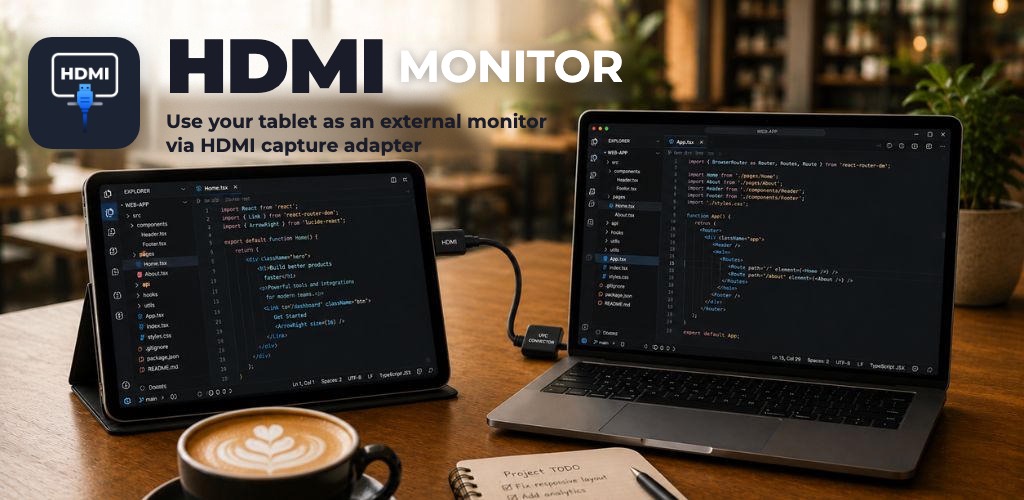
HDMI Monitor turns an Android tablet or USB-C iPad into a fullscreen HDMI display with sound through a USB UVC capture adapter. It opens fullscreen on plug-in and includes signal presets, Fit/Fill, rotation, Retro Game Mode, and Safe Eject.
 HDMI Monitor for Tablet
Plug in. Your tablet is the monitor.
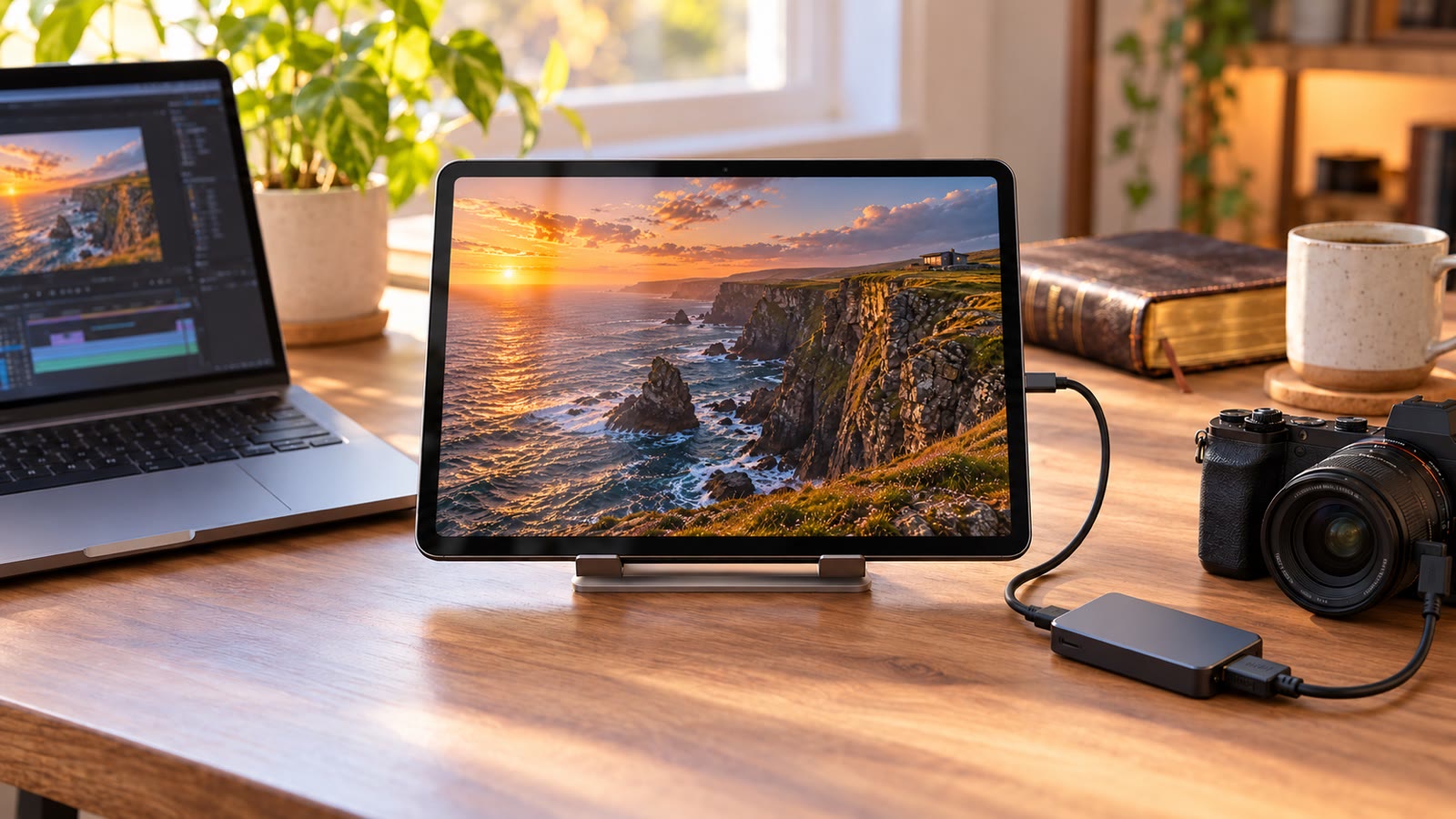
Connect a USB UVC HDMI capture adapter and your console, laptop, or camera opens fullscreen on the tablet you already own, with sound. Works on Android tablets and USB-C iPads.
Needs a UVC HDMI capture adapter. A USB-C port can’t take HDMI in by itself.
- Opens fullscreen on plug-in
- HDMI audio
- No account
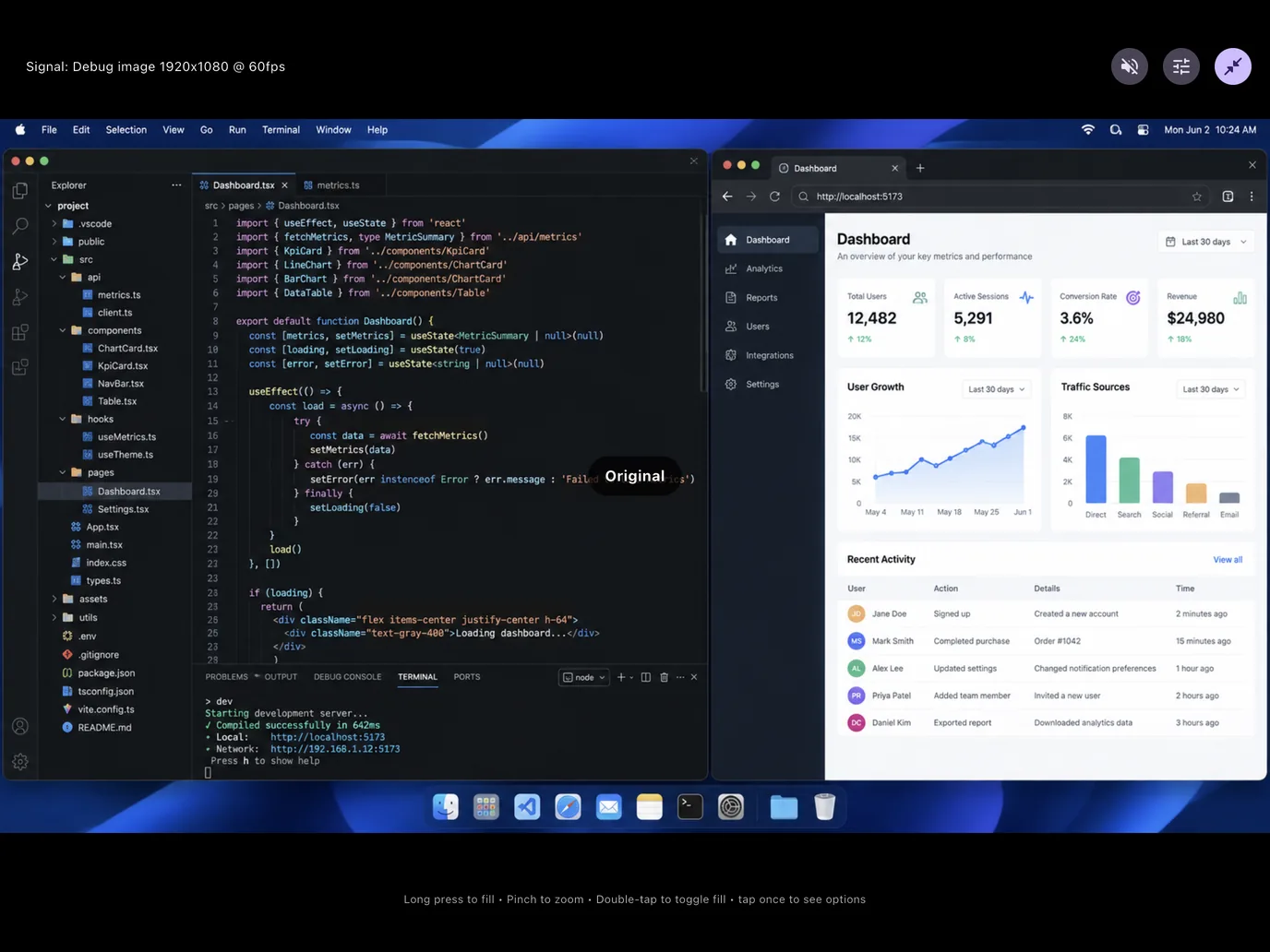
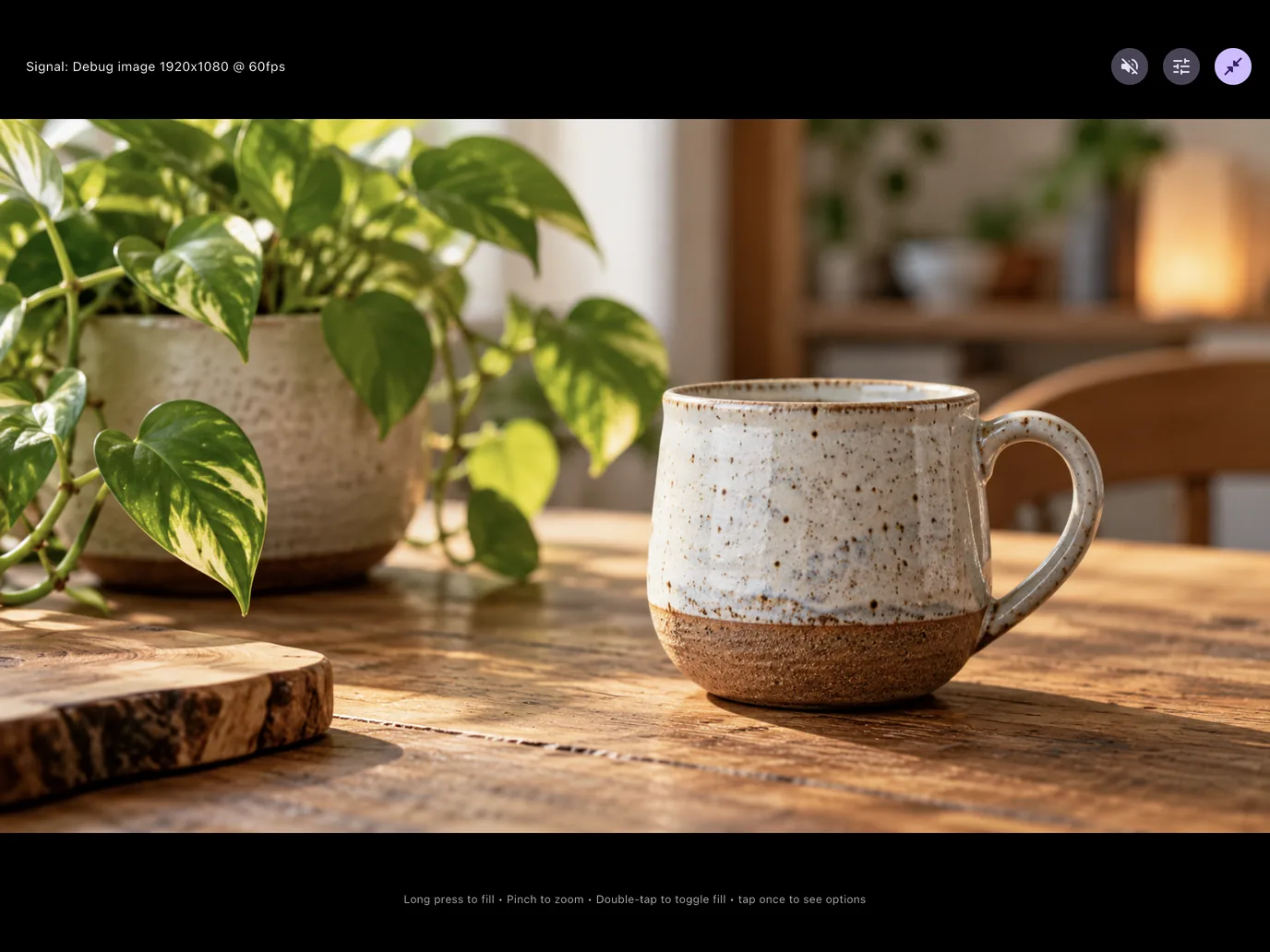
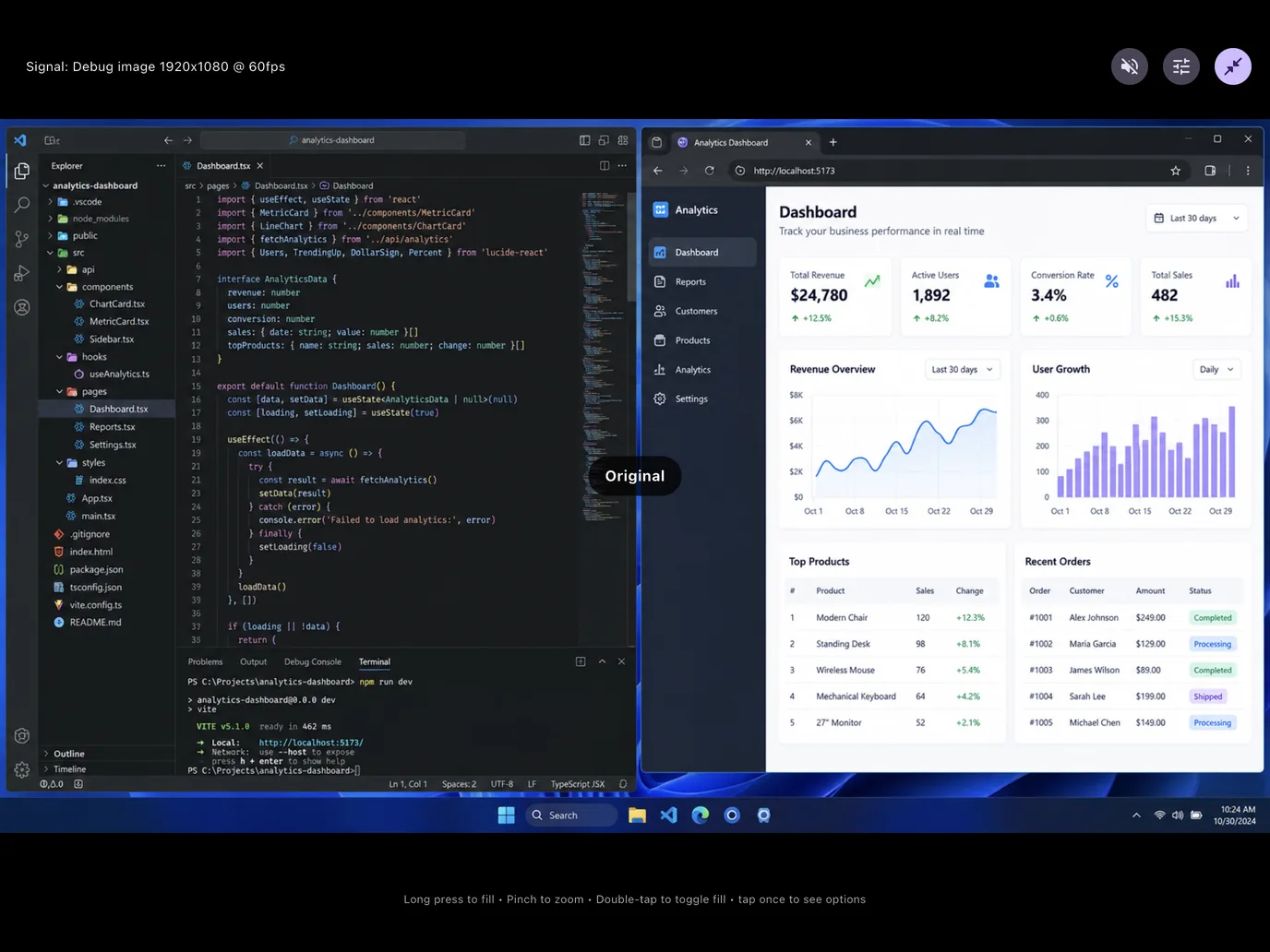
“No one, when he has lit a lamp, covers it with a container, or puts it under a bed; but puts it on a stand, that those who enter in may see the light.”
Luke 8:16
Signal path
One small adapter between your source and your screen.
Tablets don’t have an HDMI input, so a capture adapter turns the HDMI signal into standard USB video and audio. HDMI Monitor takes it from there.
-
HDMI source
Console, laptop, camera, or mini PC
-
Capture adapter
HDMI in, USB video (UVC) and audio (UAC) out
-
Tablet port
Android with USB host (OTG), or a USB-C iPad on iPadOS 17+
-
HDMI Monitor
Fullscreen picture and sound
-
Plug in. It goes fullscreen.
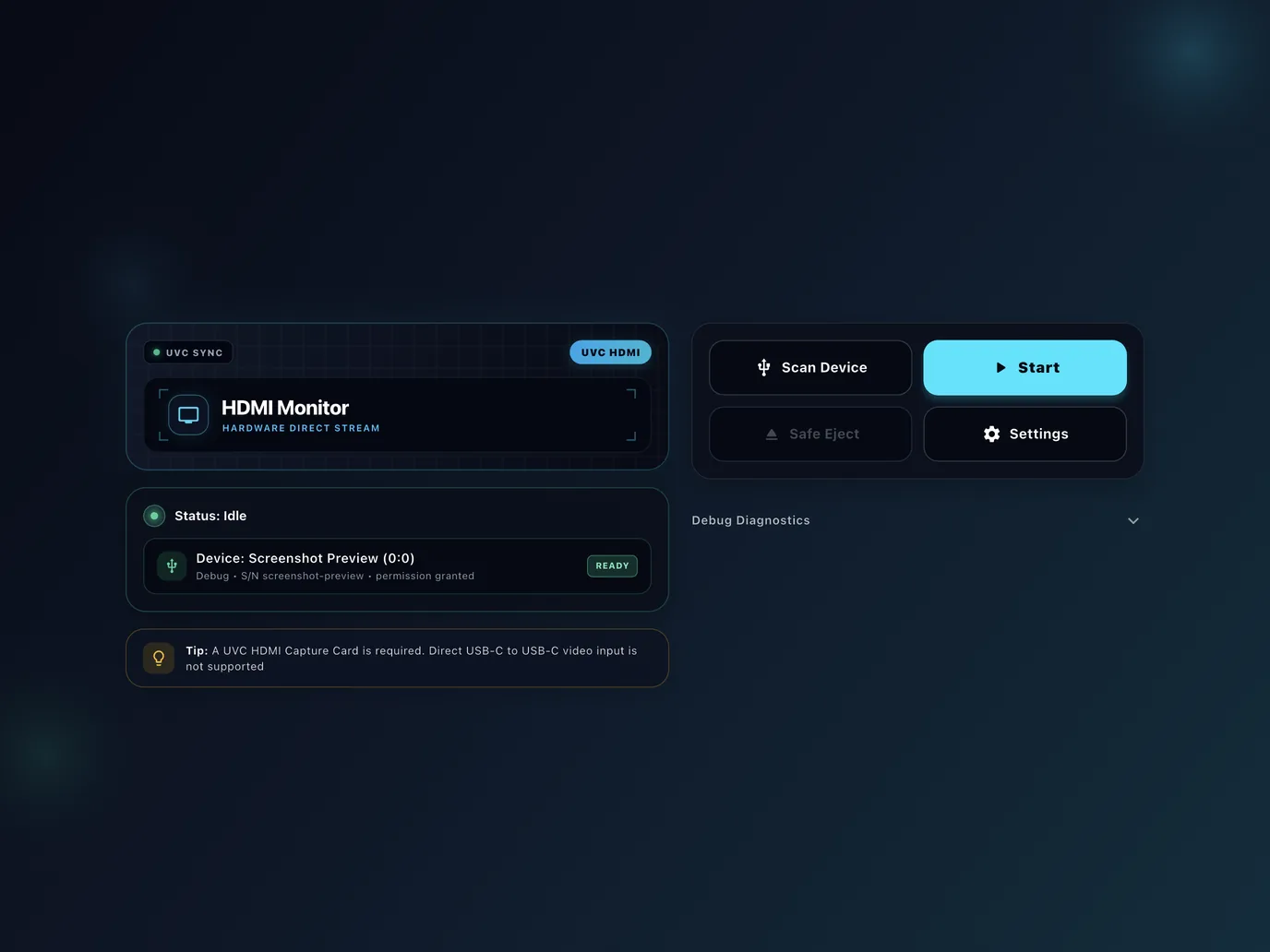
With Start Automatically on, the picture opens the moment the adapter is connected. Was it already plugged in? Tap Scan Device, then Start.
-
The sound comes with it.
Compatible adapters carry HDMI audio too. Listen on the tablet speakers, wired headphones, or Bluetooth earbuds. Just set the source’s sound output to HDMI.
-
Cable slipped? It picks back up.
Reconnect an adapter that came unplugged and monitoring resumes on its own. Step out of fullscreen and you can jump straight back in.
-
Tune it for each source.
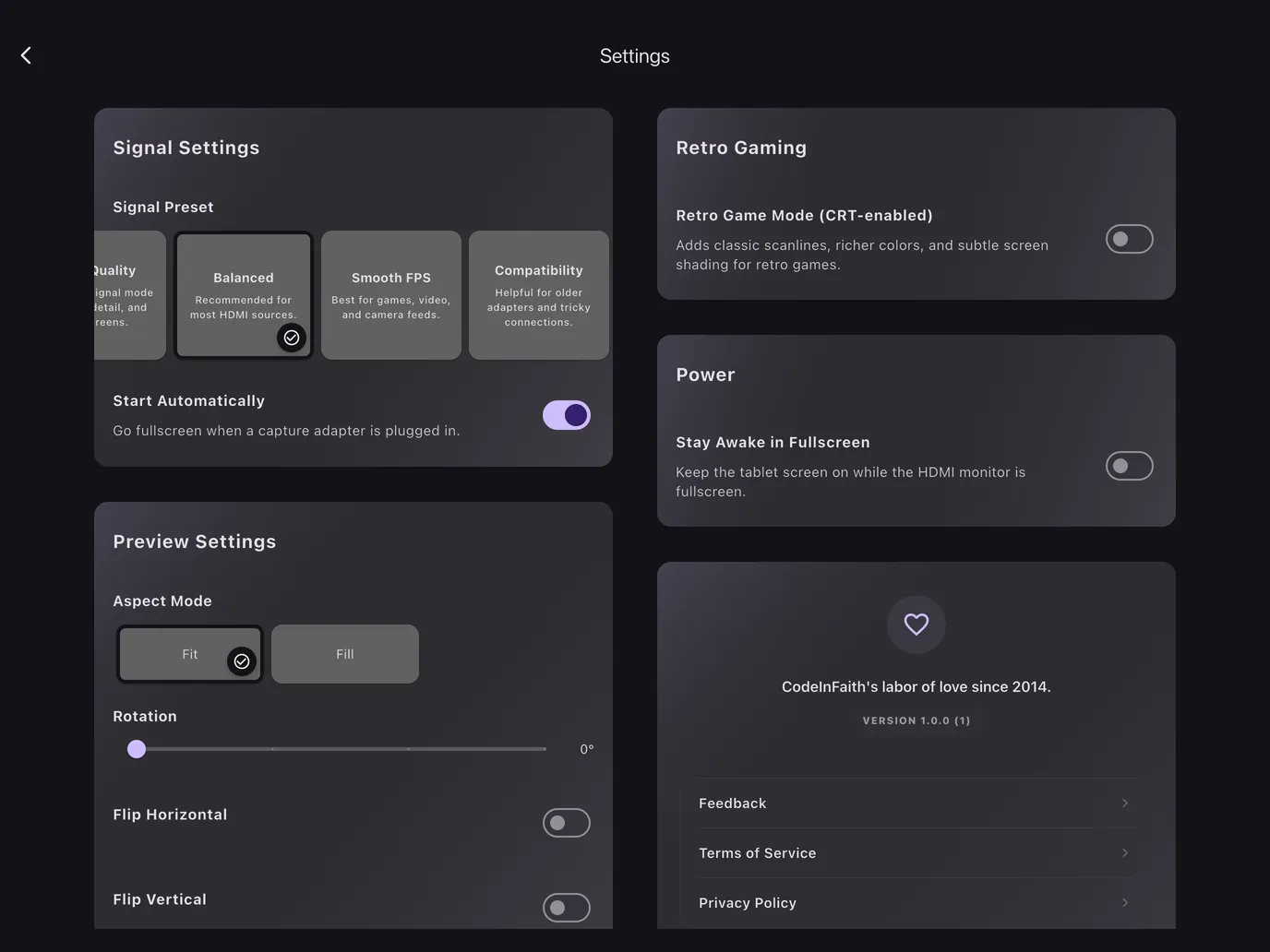
Pick a signal preset, choose Fit or Fill, and rotate or flip the picture for stands, rigs, and odd mounts.
Wherever there’s an HDMI port
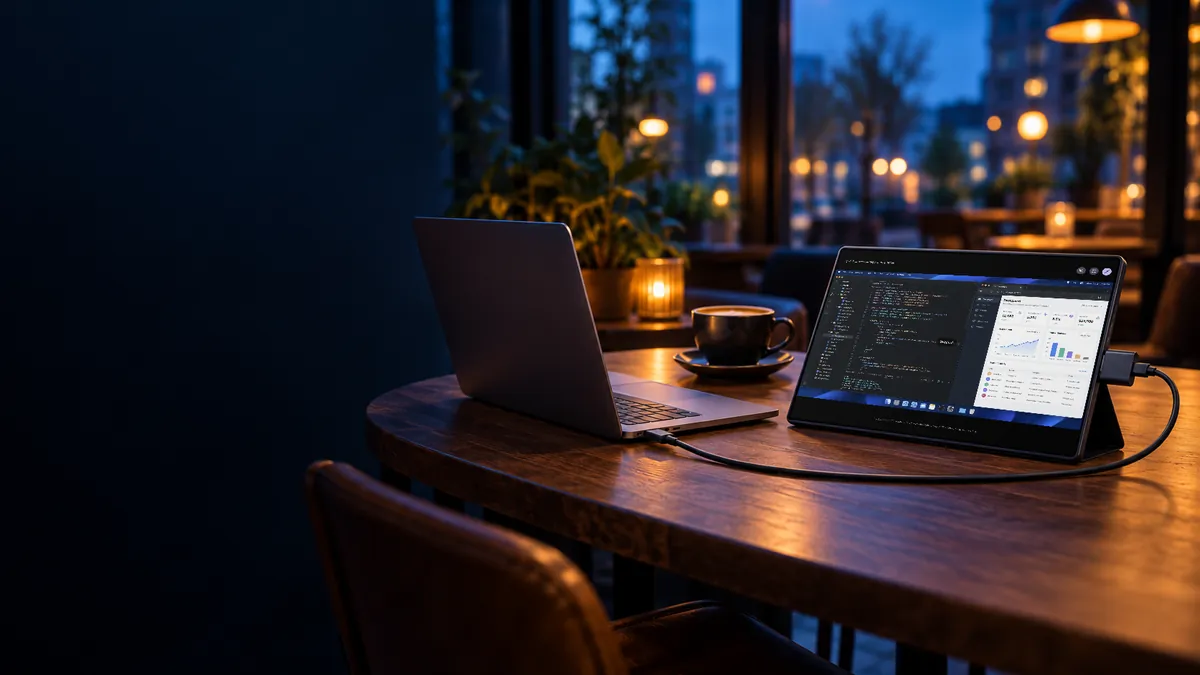
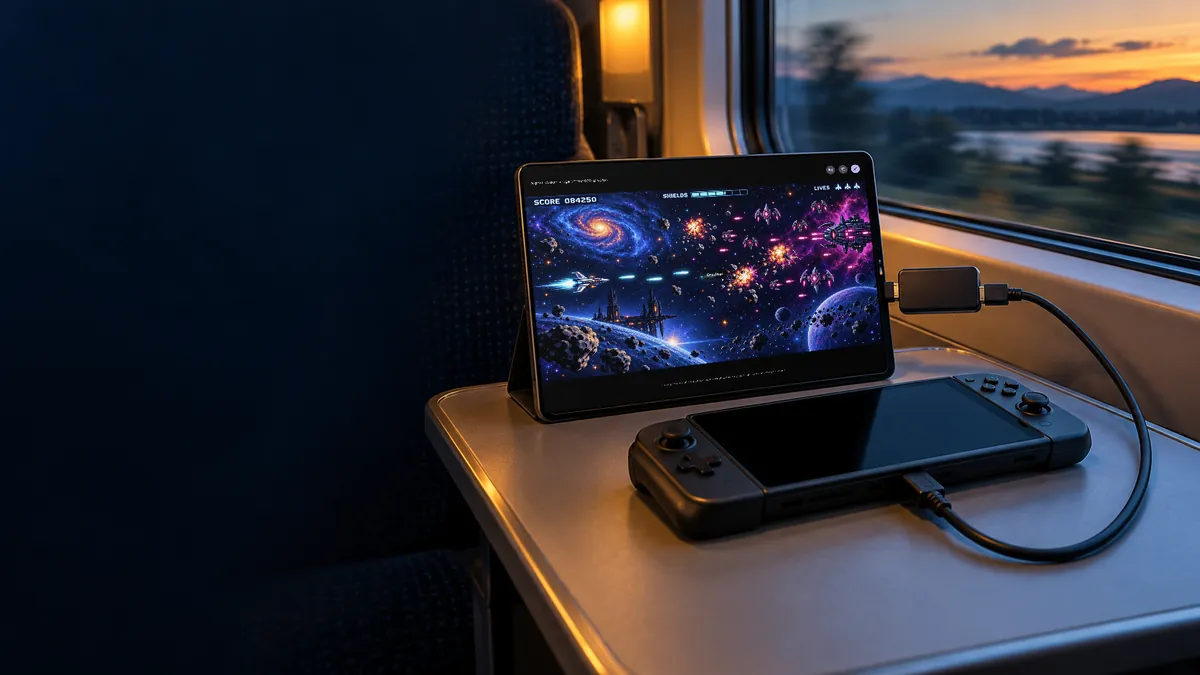
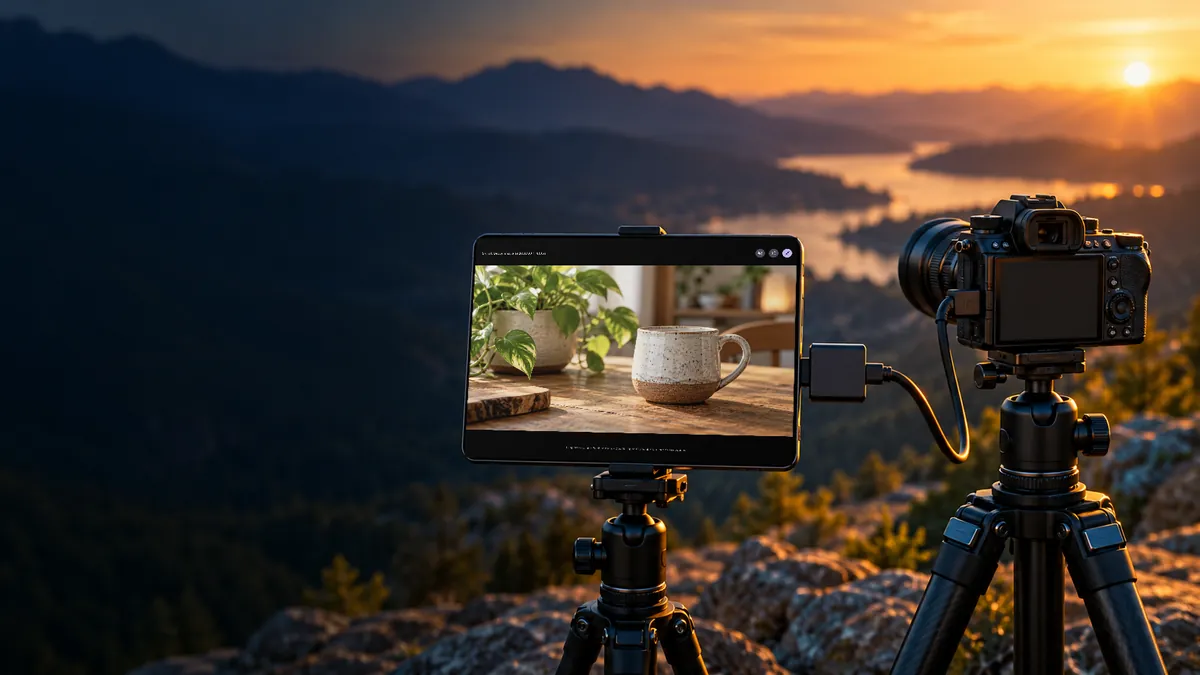
A second screen that already lives in your bag.
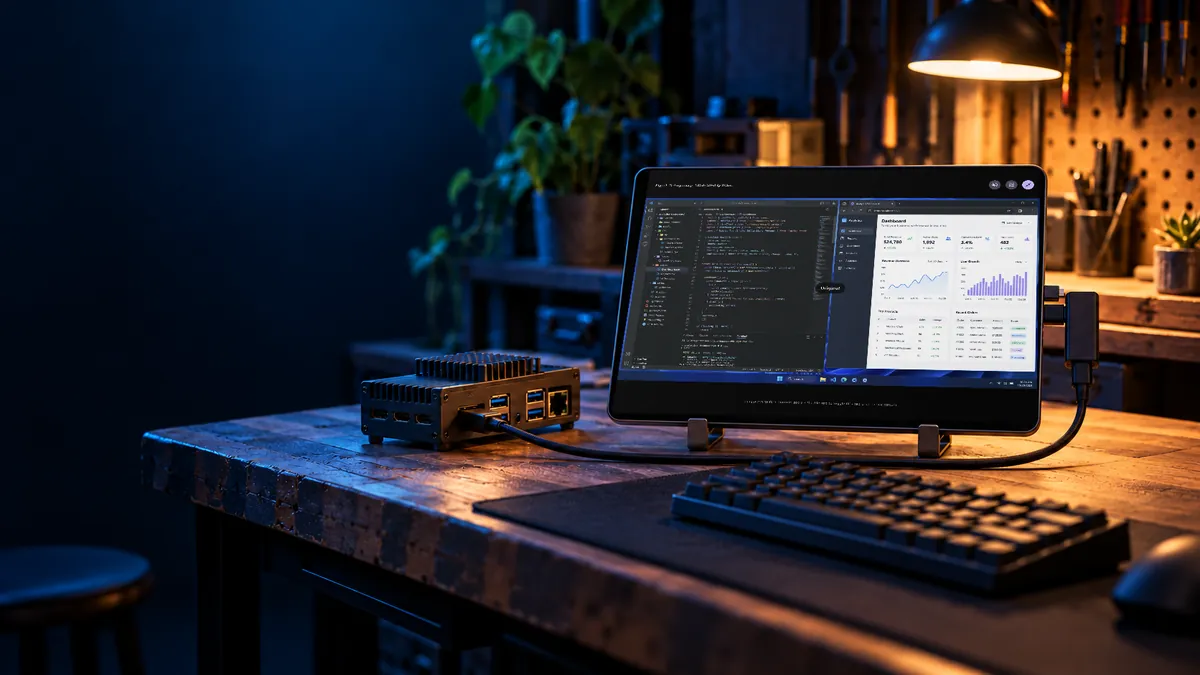
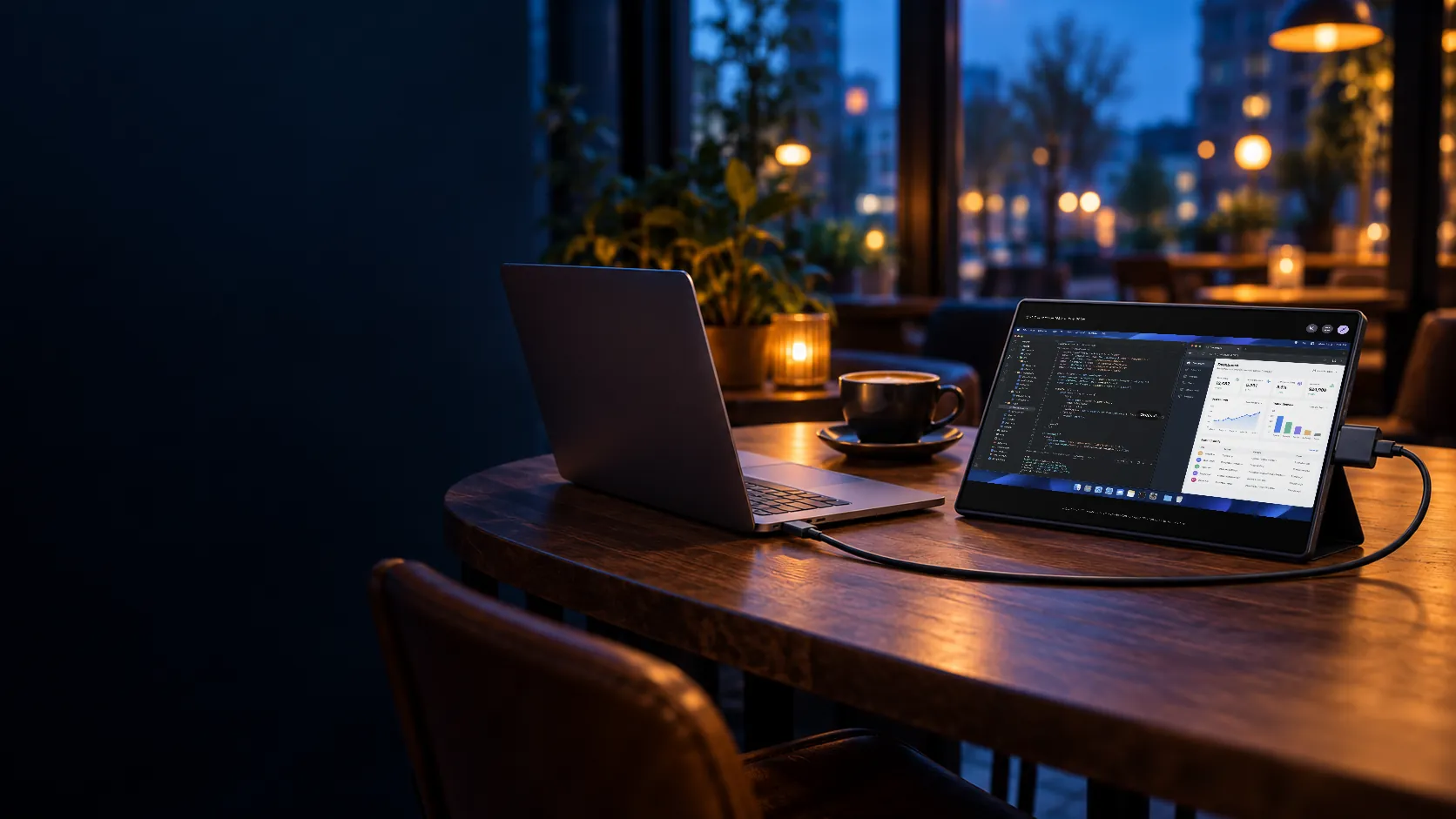
The tablet you carry is bright, battery powered, and big. Give it a signal.
Picture controls
Make the picture fit your setup.
Try the same controls the app has. Pinch to zoom and drag to pan once you’re live.
Aspect mode
Rotation
Flip
Fit shows the whole picture. Fill covers the screen and crops the edges.

Signal preset
- Best Quality Sharpest signal mode for text, detail, and big screens.
- Balanced Default Recommended for most HDMI sources.
- Smooth FPS Best for games, video, and camera feeds.
- Compatibility Helpful for older adapters and tricky connections.
Retro Game Mode · Pro
Bring back the CRT.
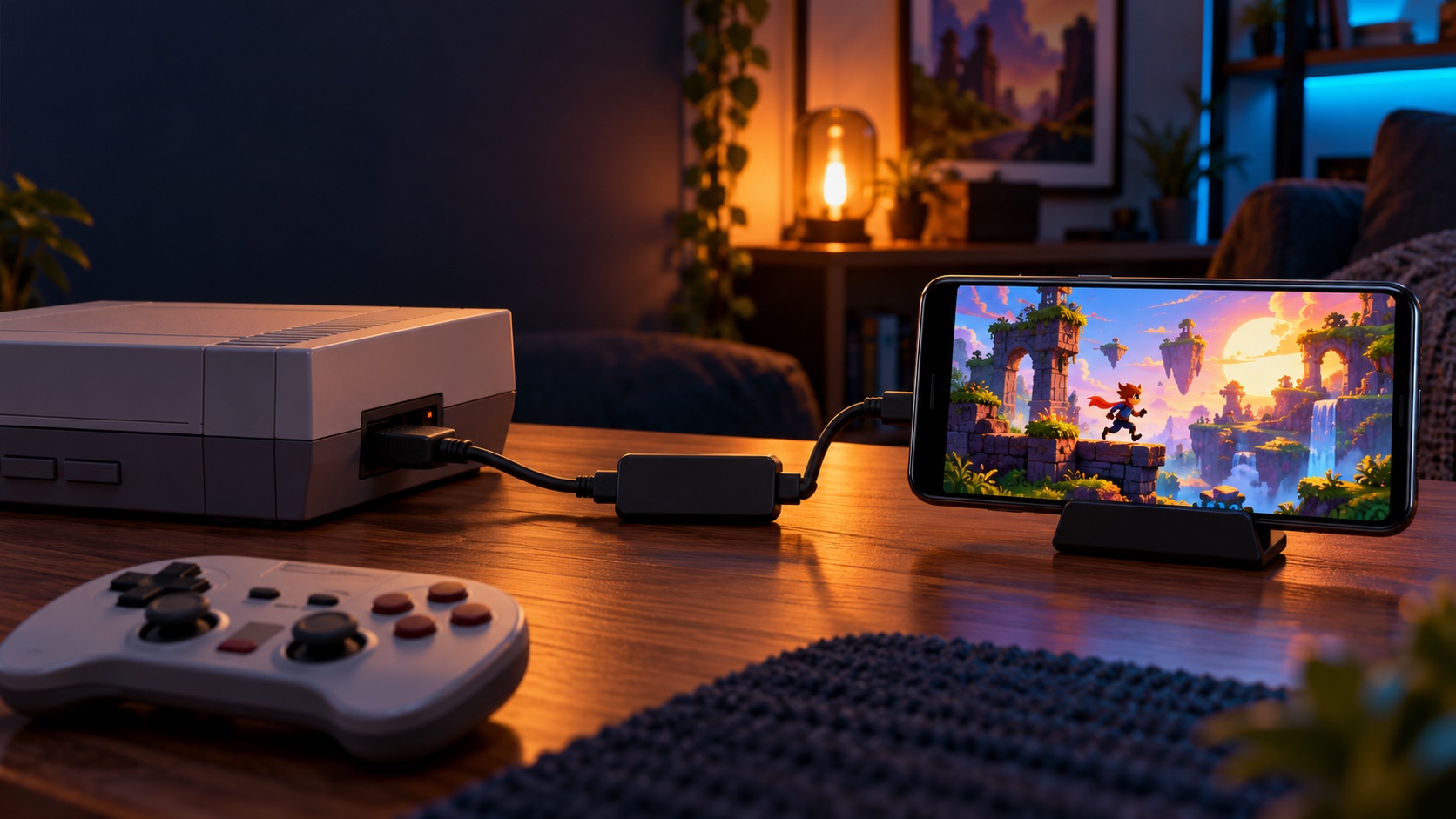
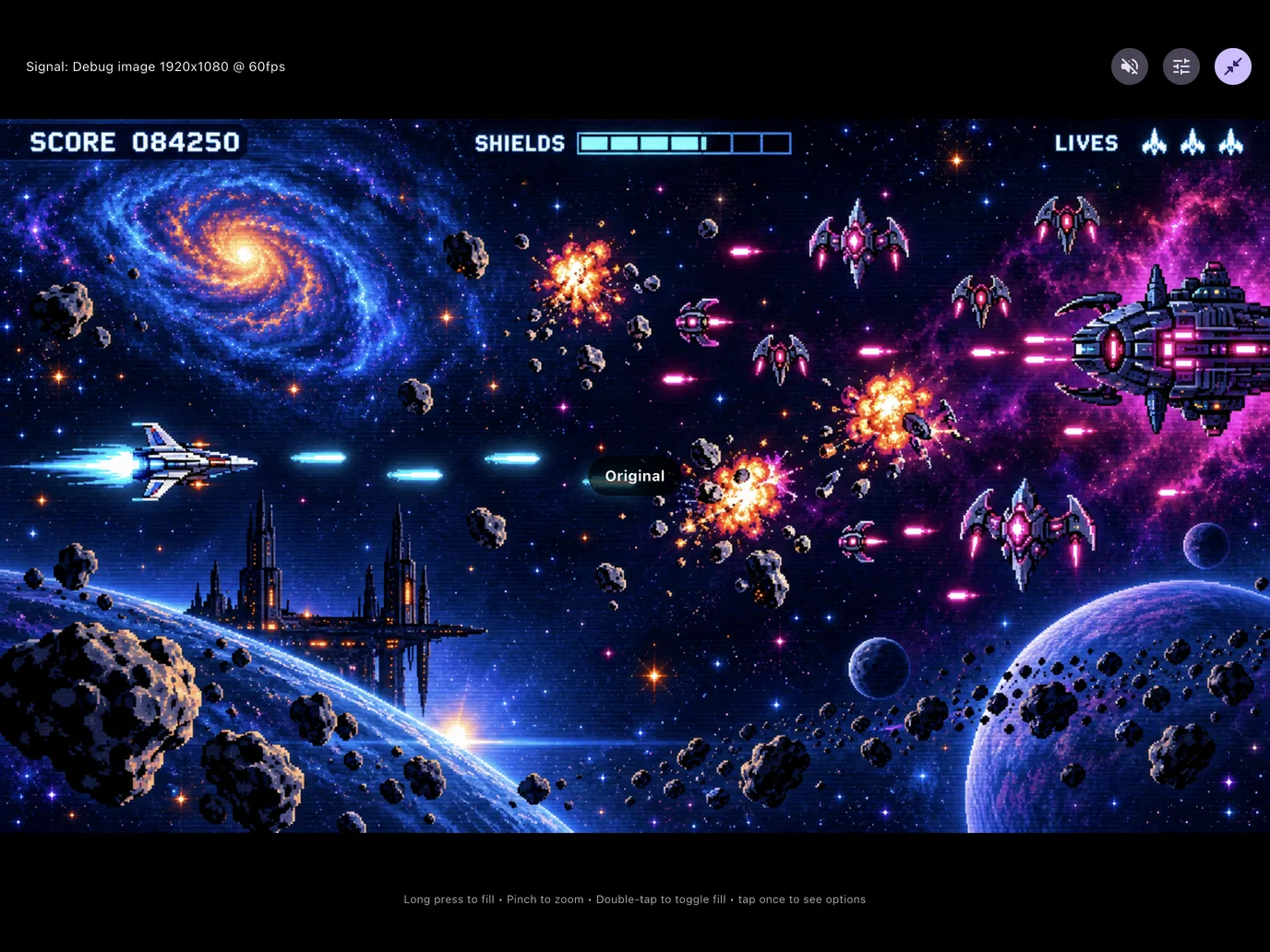
Adds classic scanlines, richer colors, and subtle screen shading for retro games. Drag to compare.

The details
Small things that make it feel like a real monitor.
HDMI audio
Plays the source’s sound in real time, with mute in the fullscreen bar.
Pinch, zoom, and pan
Zoom up to 4x to check focus, small text, or pixel detail.
Safe Eject
Stops the stream and releases the adapter before you unplug.
Stays on your device
The signal is processed locally. Nothing is recorded or uploaded.
Android and iPad
One app on Google Play and the App Store, listed as HDMI Monitor for Tablet.
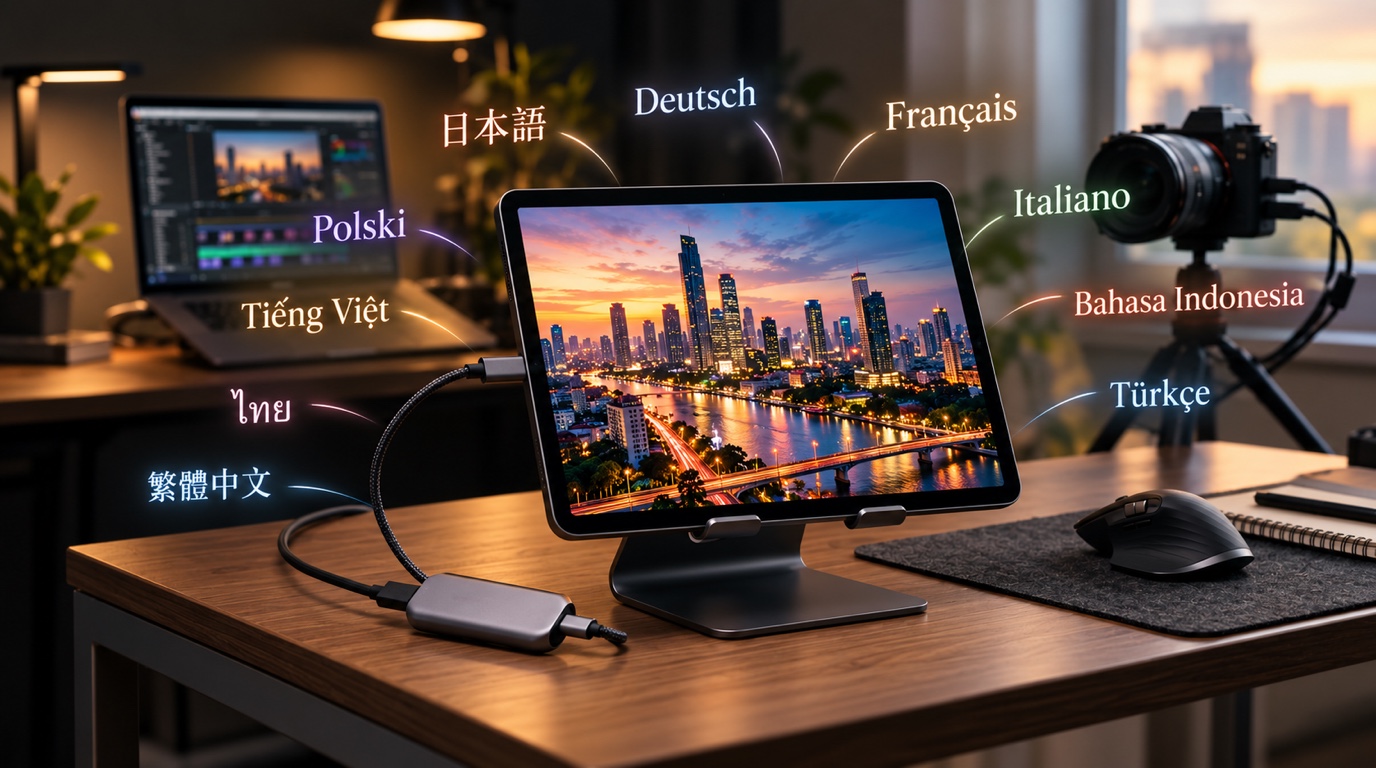
In 14 languages
The app follows your device language.
- English
- Español
- Português
- 한국어
- 日本語
- Deutsch
- Français
- Italiano
- Bahasa Indonesia
- Türkçe
- Polski
- Tiếng Việt
- ไทย
- 繁體中文
Free and Pro
Try it free. Pay once if it earns a spot in your bag.
Everything you need to test your adapter is free. Pro is a one-time purchase.
Free Every day
- 15 minutes of fullscreen monitoring a day
- HDMI audio
- Signal presets, Fit and Fill, rotation, and flip
- Auto start and Safe Eject
Pro Lifetime
One-time payment. No subscription.
- Unlimited monitor time
- Retro Game Mode with CRT effects
- Stay Awake in Fullscreen
Before you plug in
A quick compatibility check.
Capture adapters and tablets vary. If a detected adapter can’t provide usable video, the app tells you why.
Which capture adapter should I buy?- An Android tablet with USB host (OTG) support, or a USB-C iPad on iPadOS 17 or later
- A UVC HDMI capture adapter, plus a data-capable cable or hub
- For sound, an adapter with USB audio and HDMI chosen as the source’s sound output
- HDCP-protected video, like some streaming apps, may not display
- Direct USB-C to USB-C video input isn’t supported
See it in action
From the drawer to a second screen.

FAQ
Questions before you connect
Still stuck? Email support@codeinfaith.com.
What do I need to use HDMI Monitor?
A tablet, an HDMI source, and a USB UVC HDMI capture adapter. On Android the tablet needs USB host (OTG) support. On Apple devices you need a USB-C iPad on iPadOS 17 or later. It also installs on USB-C iPhones, but compatibility varies.
Can I plug HDMI straight into my tablet’s USB-C port?
No. Tablet USB-C ports don’t accept HDMI or USB-C video input. A UVC capture adapter converts the HDMI signal into USB video the app can show.
Does it play sound?
Yes, when your adapter also provides USB audio (UAC). Sound plays through the tablet speakers, wired headphones, or Bluetooth earbuds. Select HDMI as the sound output on the source device. Wired headphones have the lowest delay.
Why does Android ask for microphone permission?
Android treats audio from a USB capture adapter as microphone input. The permission lets the app receive and play the HDMI sound. It isn’t used to record you.
What’s free and what’s in Pro?
Free includes 15 minutes of fullscreen monitoring a day with audio and all signal and picture controls. Pro is a one-time purchase that adds unlimited monitor time, Retro Game Mode, and Stay Awake in Fullscreen.
Does the app record or upload my HDMI video?
No. The HDMI signal is processed locally on your device. The app doesn’t record, upload, or analyze it.
Why is the screen black with some apps?
Some sources protect video with HDCP, and capture adapters can’t show it. Games, desktops, and camera feeds usually aren’t protected.
HDMI Monitor for Tablet
Give the tablet you already own a signal.
Free on Google Play and the App Store. Bring a UVC HDMI capture adapter.
Download